1
Install from Microsoft Edge Add-ons
Click Add to Edge, then Get on the store page. It installs in about 10 seconds, and you do not need an AskSia account to install it.
about 10 seconds

GPA Guarantee: Score A+ under Finals
AskSia is now on Microsoft Edge Add-ons. The add-on is free to install and syncs every lecture, reading and assignment from Canvas, Blackboard, Brightspace, Moodle, Everytime and more into your AskSia library in about 30 seconds per course. It is read-only, so it never writes to your LMS.
Free to install. Desktop Chrome, Edge, Brave and Arc.
 Canvas
 Blackboard
 Brightspace
 Moodle
 EverytimeCyberCampusEcho360Panopto
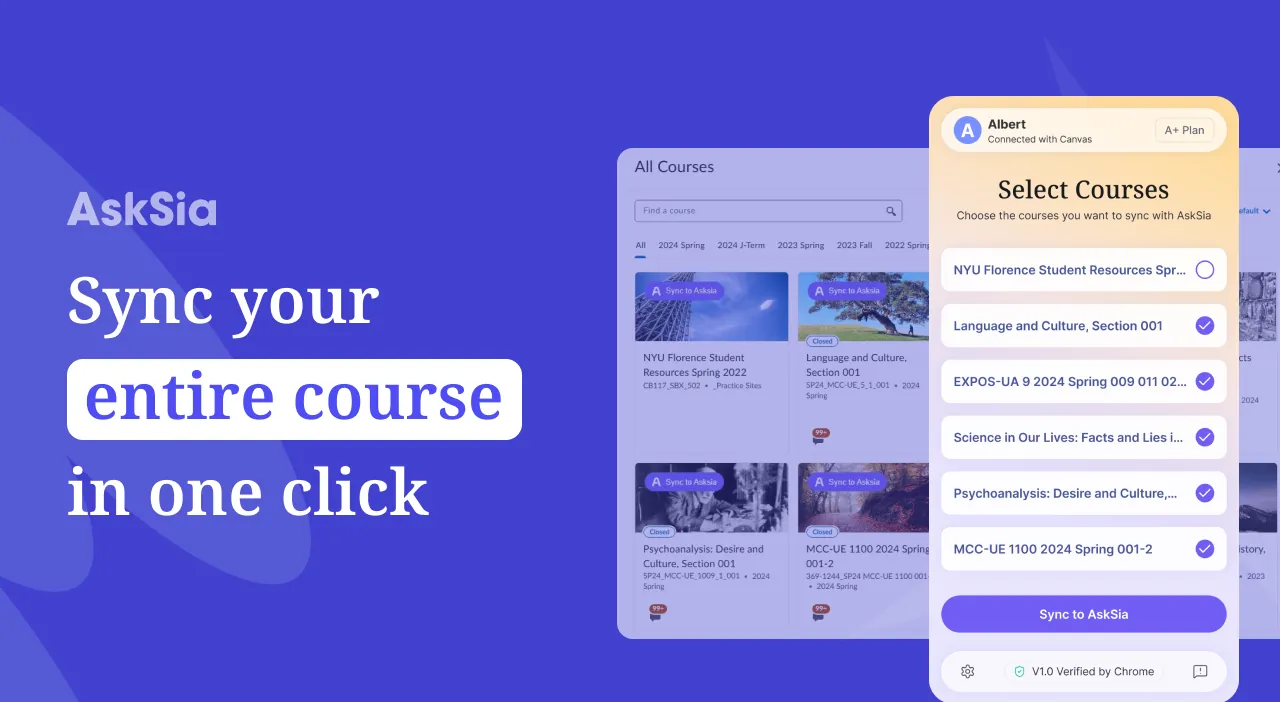
The AskSia add-on for Microsoft Edge is a tool for university students that syncs a whole semester of course materials from Canvas, Blackboard, Brightspace, Moodle, Everytime, CyberCampus, Echo360 or Panopto into AskSia, the AI study assistant, in one click and about 30 seconds per course. Lectures, readings, syllabi, assignments and handouts arrive with the original module structure. The add-on is read-only: it never writes, changes, submits or deletes anything in your LMS, and your LMS password is never shared with AskSia. It installs directly from Microsoft Edge Add-ons, with no need for the Chrome Web Store, and runs in Edge on Windows, macOS and Linux. Installing it is free, and syncing is part of the AskSia A+ plan.
Three steps, about thirty seconds per course. No university approval is needed, because you only sync materials you can already open.
Click Add to Edge, then Get on the store page. It installs in about 10 seconds, and you do not need an AskSia account to install it.
about 10 seconds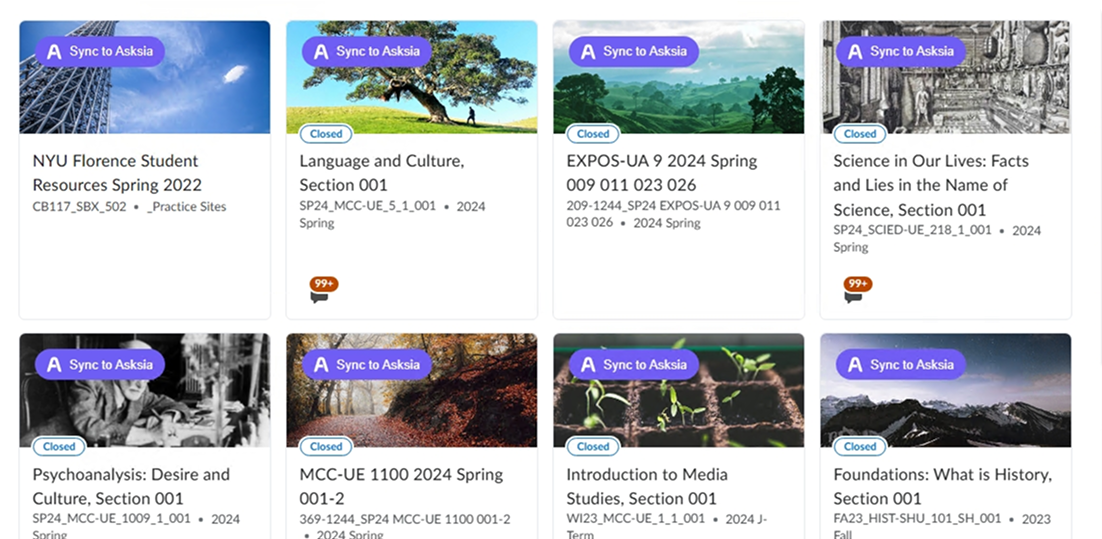
Log in to Canvas, Blackboard, Brightspace, Moodle or another supported platform as you normally would. A Sync to AskSia button appears on every course page. One click captures the files, pages and recordings in that course.
about 30 sec per course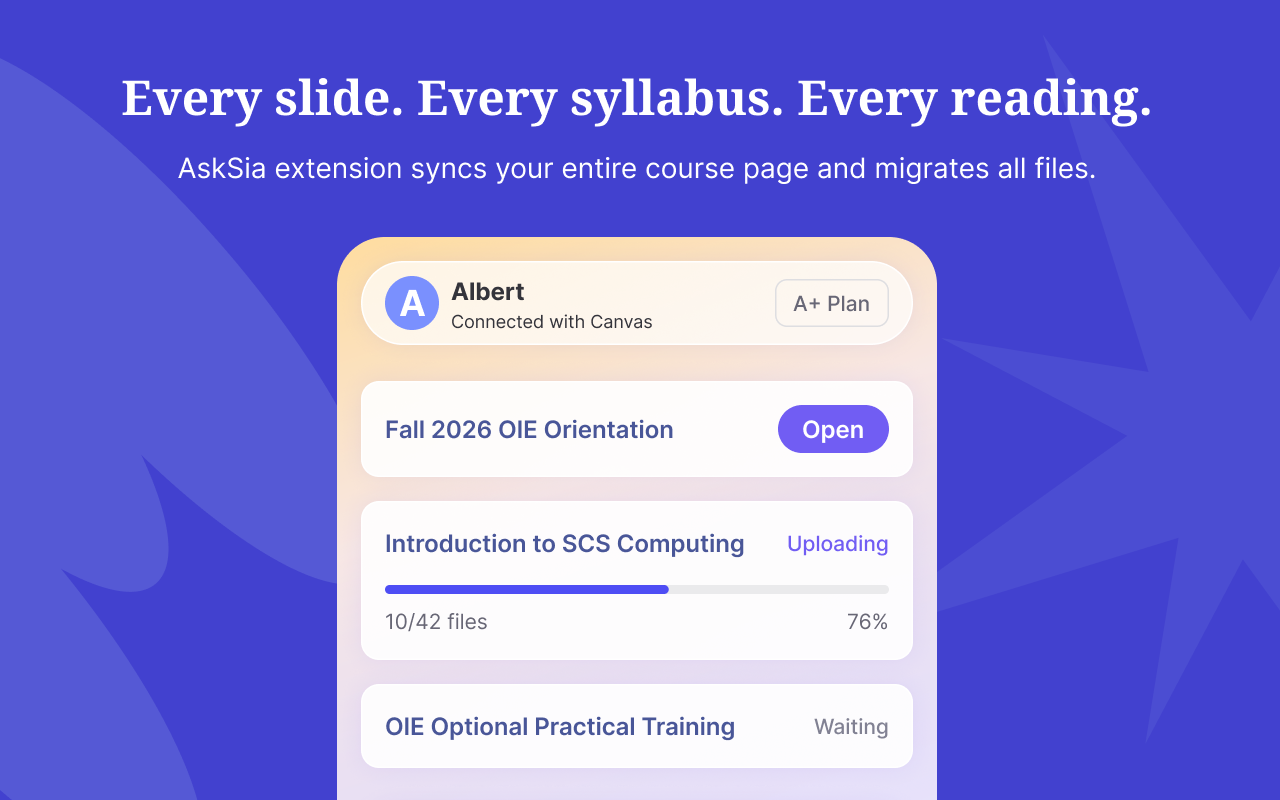
The course appears in your AskSia library with its module structure intact. Ask questions across every file with page-level citations, or turn it into Sia Notes, flashcards, practice exams and a study plan.
chat · notes · quizzes · planIf your university uses one of these, the extension works out of the box. No configuration and no calls with IT. Open the guide for your platform to see exactly what syncs.
CanvasBy Instructure. Modules, files, pages and announcements.SupportedBlackboardUltra and Original experience.SupportedBrightspaceBy D2L. Common in Canada and Europe.SupportedMoodleOpen source and used worldwide.SupportedEverytime에브리타임. The Korean campus standard.SupportedLMS not listed?We add platforms based on student requests. Email us your university and the name of your LMS.
Everything your lecturer posted, with the original module and week structure preserved. File names and formats stay as they are.
Your AskSia library mirrors the way the course is organised in the LMS: modules, weeks and units.
When new material is posted mid-semester, one click brings it in. Your library stays current with the LMS.
Installing the extension costs nothing. Syncing courses into AskSia is included in the A+ plan.
Syncing is the start. Once the semester is in AskSia, Sia works from your actual course materials, not from the open internet.
Every answer links back to the exact page of the exact file, with the passage highlighted.
Recordings on Echo360 and Panopto become timestamped notes with key concepts and the traps your lecturer flagged.
Multiple choice, short answer and free response, with answer keys cited to the source slide or page.
Add your exam date and daily study time, then follow the plan in the web app or the mobile app.
Sia picks up course end dates and assignment due dates from your LMS and reminds you by email, notification and the web app calendar.
Stuck while reading a course page? Ask Sia right there, without leaving your LMS.
Built for the semester, not just the homework. Every design decision, from the read-only permission model to page-level citations, is made so you can trust the tool with your academic life.
The extension does not request write permissions, so it cannot submit, change or delete anything in your LMS. That is an architectural limit, not only a promise.
We never see, store or transmit your LMS credentials. The extension uses the session you already signed in to, and your password never leaves your browser.
Every extension on Microsoft Edge Add-ons passes Microsoft's review before it is published, and every update is reviewed again.
Synced material flows into AskSia's page-level citation system. Every claim Sia makes links back to the exact page of the exact file, with the passage highlighted.
Your synced course materials are processed only for your own questions. We do not train AI models on your content.
Remove the extension in one click. Delete single files or whole course folders from your AskSia library instantly. You stay in control of your data.
Your LMS is the centre of your academic life, so the limits are built into the extension itself. Your LMS looks exactly the same whether or not the extension is installed.
Doing it yourself takes about an hour per course. The extension takes about 30 seconds.
About 60 minutes per course. Five courses is 5+ hours.
About 30 seconds per course. Organised and ready to chat.
When you realise finals are three weeks away, sync first. Then ask.
Ask Sia for a one-page summary of each reading, then a synthesis of the themes likely to appear on the final.
Reading catch-upSync past problem sets, solutions and graded quizzes. Ask which concepts and question types come up most.
Pattern recognitionRecorded lectures and slide decks sync too. Sia summarises them and answers questions with citations back to the minute.
Lecture recoveryAsk for a guide covering every module, with worked examples and concept checks drawn from your own slides and readings.
Study guideGenerate a full practice exam from your materials, with answer keys cited to the source.
Practice examsRe-sync anytime. New readings, announcements and assignments arrive in one click.
Always up to dateThe same extension students use in Chrome, published on Microsoft's own store for Edge.
You do not need to switch on extensions from other stores. Open the listing, click Get and the Sync button is ready.
The add-on runs in the browser, so it works the same in Edge on Windows, macOS and Linux. There is no native app to install.
Add-ons belong to an Edge profile. Add AskSia to the profile where you log in to your LMS, such as your university profile.
Install AskSia from the Chrome Web Store. It is the same extension, with the same read-only access.
The questions students ask before installing.
Yes. The add-on is published on Microsoft Edge Add-ons, where Microsoft reviews every extension before listing. AskSia is used by more than 2 million students at over 2,000 universities. The add-on is strictly read-only: it never writes, changes, submits or deletes anything in your LMS. You can review the permissions before installing and remove it in one click at any time.
Only what it needs to work: read access to pages on the LMS domains you choose to sync, the ability to show the Sync to AskSia button, and the ability to upload captured files to your own AskSia account. It does not request access to banking, email or any site outside your LMS. Edge shows every permission before you confirm the install.
No. AskSia never sees, stores or transmits your LMS username or password. The extension uses the browser session you already logged into yourself. If you log out of your LMS, the extension cannot sync until you log back in. Your credentials never leave your browser.
No. The extension is read-only. It cannot submit assignments, take quizzes, post in discussions, message lecturers, change grades or modify anything. It does not request write permissions, so write actions are not possible even if there were a bug.
No. Content synced through the extension is never used to train AI models. Your files are processed only for your own questions, kept private to your account, and never shared or sold.
Canvas (Instructure), Blackboard (Ultra and Original), Brightspace (D2L), Moodle, Everytime (에브리타임) and CyberCampus, plus lecture recordings on Echo360 and Panopto. If your university uses one of these, the extension works with no configuration. If your LMS is not listed, email us and we will look at adding it.
Every downloadable resource your LMS exposes: PDFs including scanned handouts, Word documents, PowerPoint decks, Excel spreadsheets, images, text files, Markdown, EPUB readings, Google Docs and Slides links, YouTube lecture links, and page content such as syllabi and announcements. Original file names and formats are kept.
Yes. Open your AskSia library, select a course folder or a single file and click Delete. Deletion is immediate and permanent. Uninstalling the extension stops further syncing but does not delete files you already synced, which you can remove from your library separately.
The extension only reads materials you already have access to and writes nothing to your LMS, which is comparable to downloading the same files yourself. Using AskSia to understand material, build study guides, quiz yourself and review lectures is ordinary studying. Submitting AI-generated answers as graded work would breach most academic integrity policies. Rules differ between institutions and courses, so check your syllabus or honour code, and follow your institution's academic integrity policy.
Downloading 40 or more files across five courses by hand takes hours, loses the module and week structure, and leaves you with a flat folder to open one file at a time. The extension keeps the structure, brings everything into an AI you can question with citations back to the source file, and re-syncs in one click through the semester.
Installing the extension is free, and you do not need a credit card or an AskSia account to install it. Syncing courses from your LMS is part of the AskSia A+ plan, so you need A+ to use the Sync button.
The extension runs in desktop browsers. Everything you sync appears in the AskSia web app and mobile app, so you can study from your phone after syncing on a computer.
Yes. The add-on runs in the browser, so it works the same in Microsoft Edge on Windows, macOS and Linux. On a university-managed computer, extension installs may be controlled by your IT administrator.
No. AskSia is published on Microsoft Edge Add-ons, so you can install it directly without turning on extensions from other stores. If you use Chrome, Brave or Arc, see AskSia for Chrome.
Finals closer than you would like? Free to install. Read-only. No account needed to install. Remove it in one click anytime.
Last updated 18 September 2026. Ratings, student numbers and plan details are as published by AskSia on that date.
Chrome and the Chrome Web Store are trademarks of Google LLC. Microsoft Edge is a trademark of the Microsoft group of companies. Canvas, Blackboard, Brightspace, Moodle, Everytime, Echo360 and Panopto are trademarks of their respective owners. AskSia is an independent study tool and is not affiliated with, endorsed by or sponsored by any of them.